
DocsQuick Start: Configure Viametric
Quick Start: Configure Viametric
Learn how to add your site, define your keywords, and start tracking brand mentions across AI engines.
Follow this guide to set up ViaMetric, add your site, and start tracking how often AI engines mention your brand.
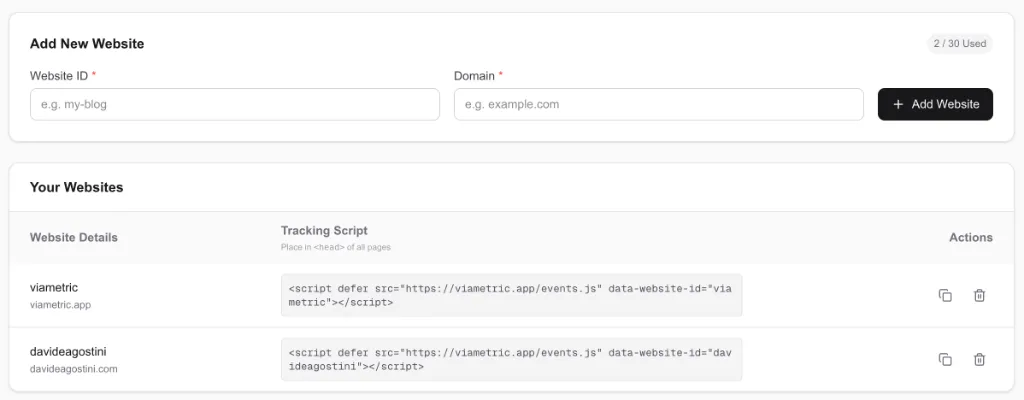
1. Add Your Website
First, connect the site you want to monitor:
- Navigate to the Settings page (/settings).
- Add your Domain and save it.
2. Define Your Keywords
Go to the Mentions page and add the prompts or keywords that matter for your brand.
Good starter examples:
- your brand name
- your category terms
- comparison keywords with competitors
- problem-aware keywords your buyers search for

3. Run Your First Mention Check
Once your keywords are in place:
- Start a check from the Mentions page (/mentions).
- ViaMetric will query supported AI engines and look for your brand in the answers.
- Review where you appear, where competitors appear instead, and which queries produce no brand mention.
4. Review Mentions and Gaps
After the analysis completes, the results will appear in the AI Citation Feed table.

Understanding the Results
Expand any row in the table to view detailed insights:
- AI Response: The actual answer provided by the AI model.
- Ranking & Citations: How prominently your brand is featured.
- Competitors: Which brands are being mentioned instead of you.
- Optimization Tips: Specific suggestions to improve your visibility.
Actionable Tools
Inside the expanded view, you will find powerful tools to improve your visibility:
- Generate FIX: Creates AI-optimized content tailored to address visibility gaps.
- JSON-LD Schema: Generates a semantic structure block you can add to your site to improve machine readability.